2 Set up SONA to pass ID to Qualtrics consent
The purpose of this section is to show how to set up SONA in such a way that it passes id to Qualtrics consent
2.1 Create SONA
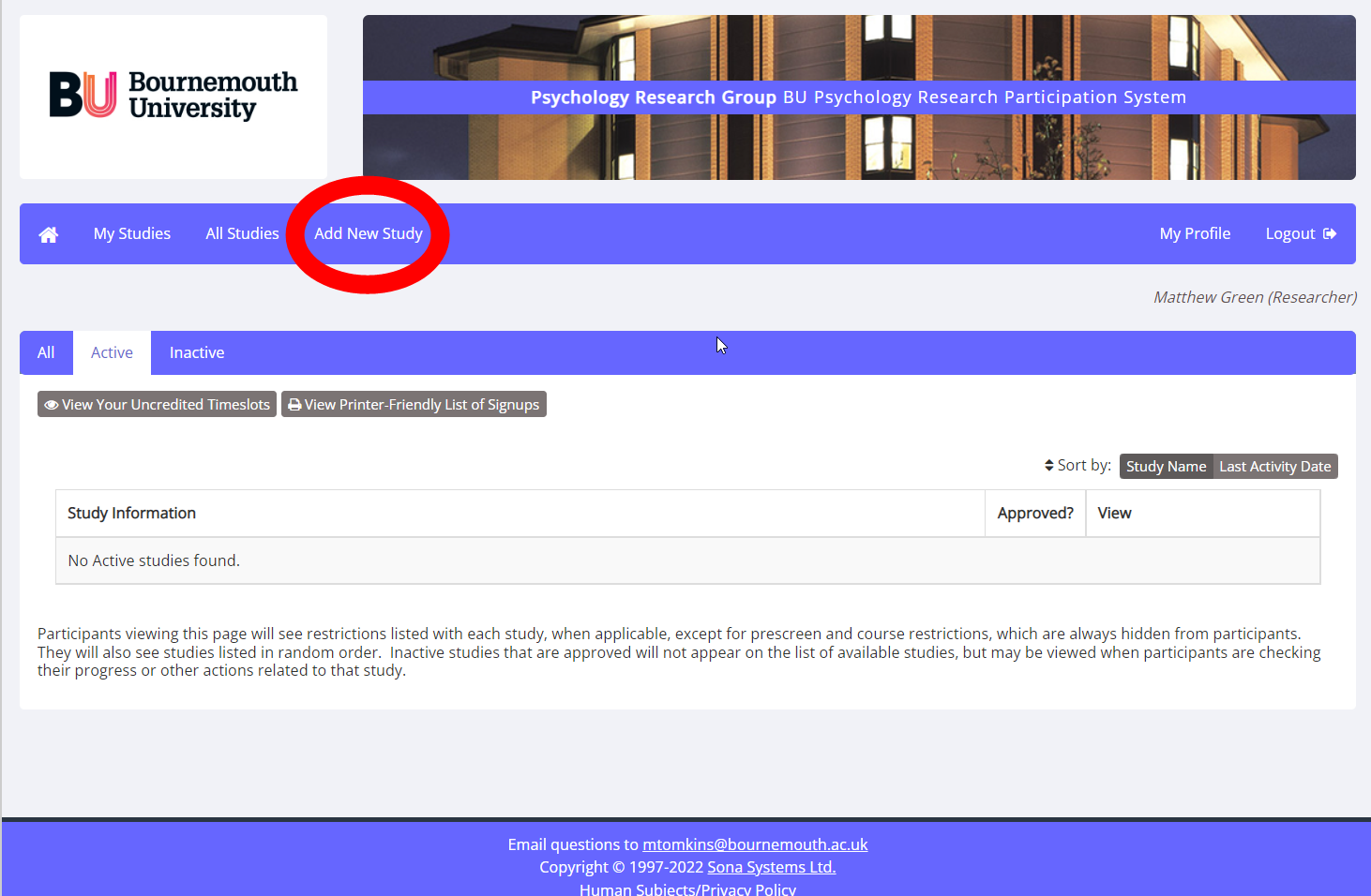
Start by adding a new study in SONA.
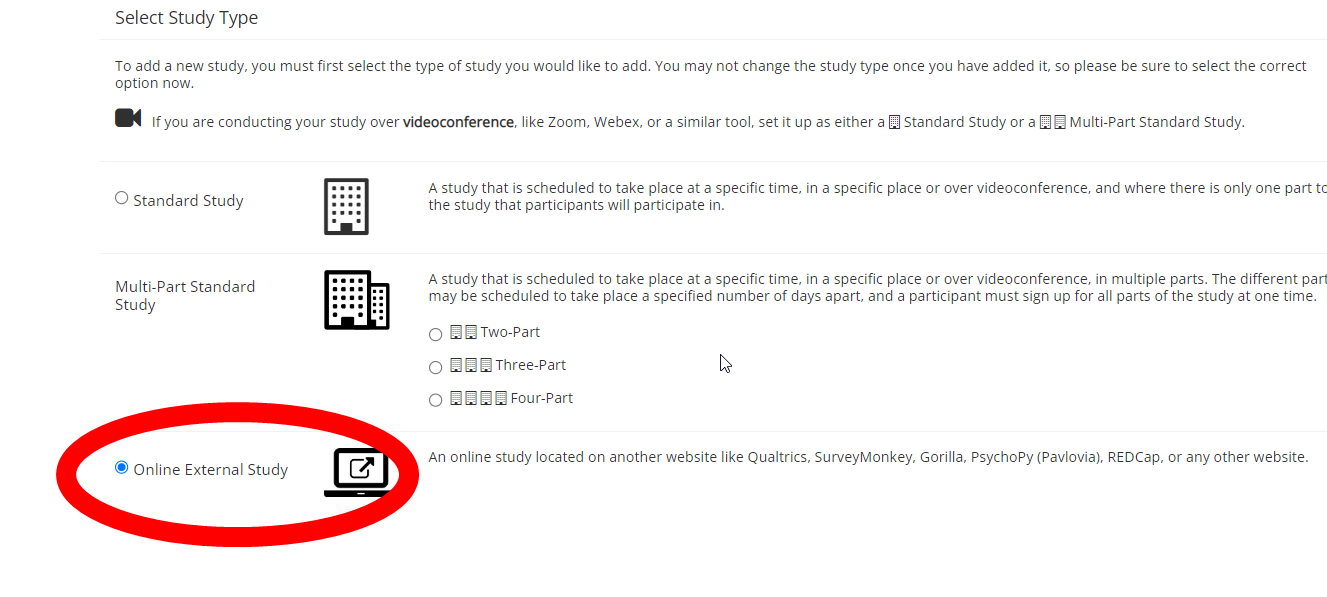
Next choose Online External Study.
Press Continue to arrive at the Study Information page. In Basic Study Information, supply temporary contents for the following mandatory fields: Study Name; Brief Abstract; Detailed Description (You can change these contents later)
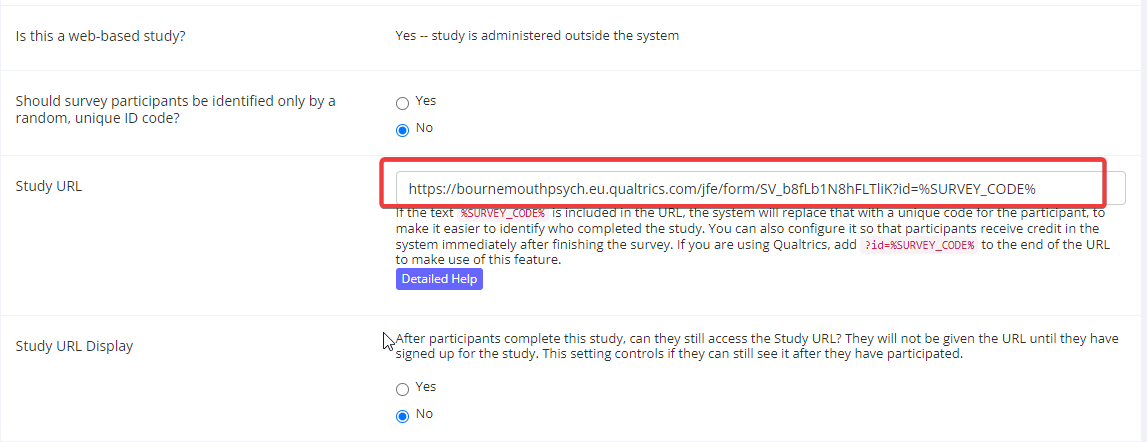
Scroll down to access Advanced Settings, and keep scrolling down until you see the Study URL field. Section 2.2 shows how to craft the URL that goes here.

2.2 Craft Study URL
The “Study URL” in SONA is the link that takes you from SONA to the Qualtrics consent form in such a way that the id is passed along. It is composed by modifying the link to the Qualtrics consent survey.
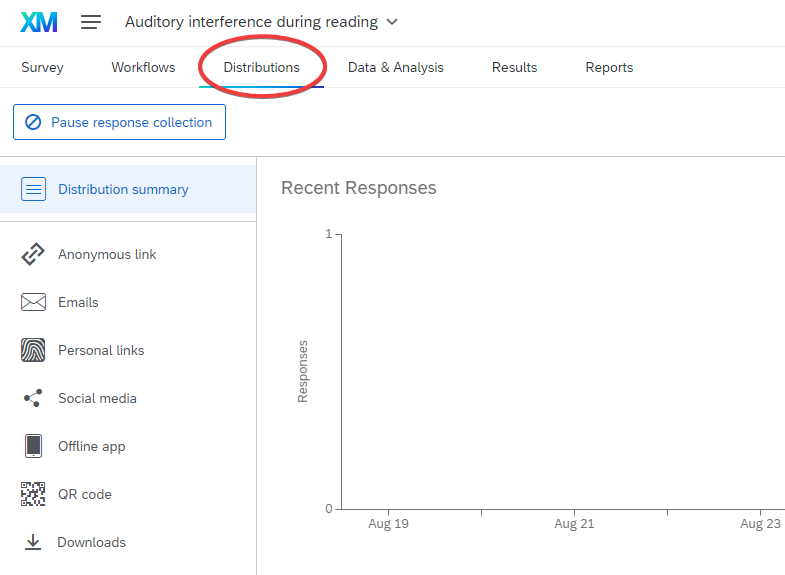
First get the “anonymous link” from Qualtrics and paste it into a text editor so you can change it.
Survey
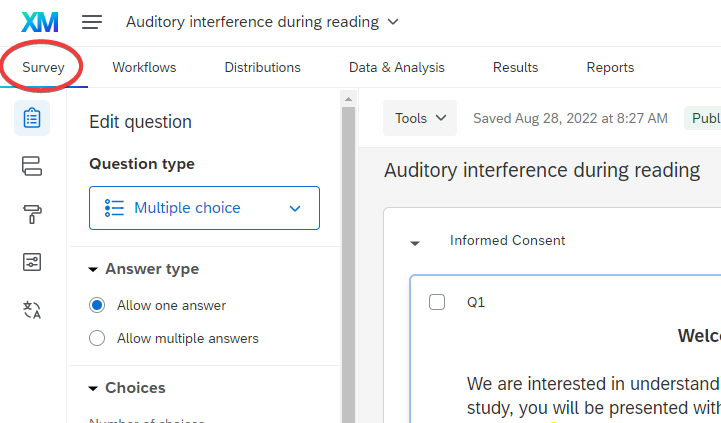
Distributions
Anonymous Link
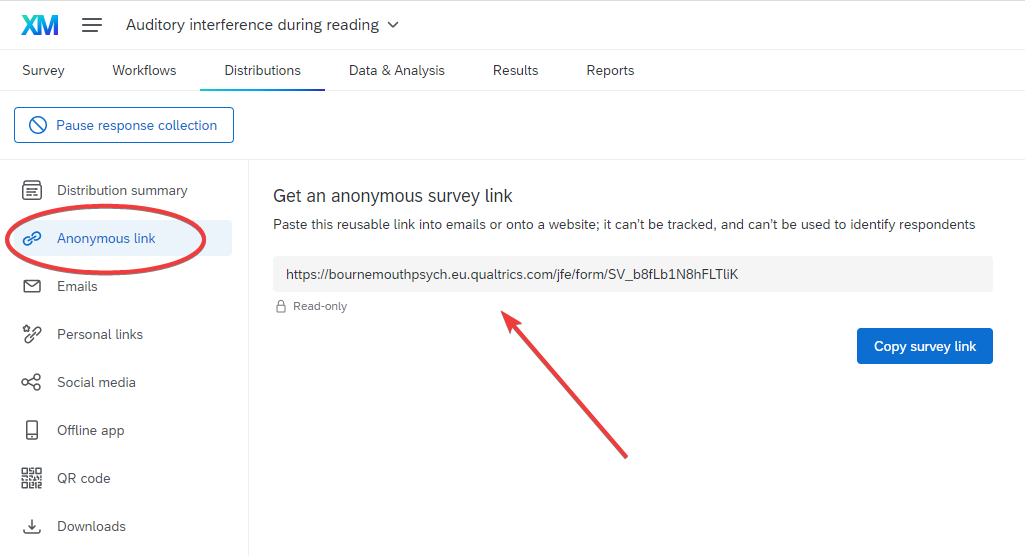
https://bournemouthpsych.eu.qualtrics.com/jfe/form/SV_b8fLb1N8hFLTliK
Next take that link and add to the end of it the following:
?id=%SURVEY_CODE%
so that it becomes:
https://bournemouthpsych.eu.qualtrics.com/jfe/form/SV_b8fLb1N8hFLTliK?id=%SURVEY_CODE%
This is now what you need for your “Study URL” in SONA.
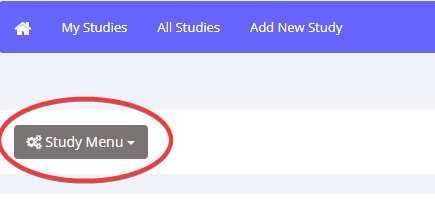
You can access this field in an existing SONA study as follows:
SONA -> My Studies -> … locate your study … -> Study Menu
Change study information
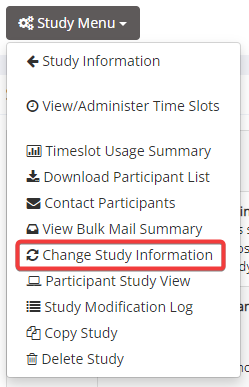
Scroll down past Basic Study Information into Advanced Settings
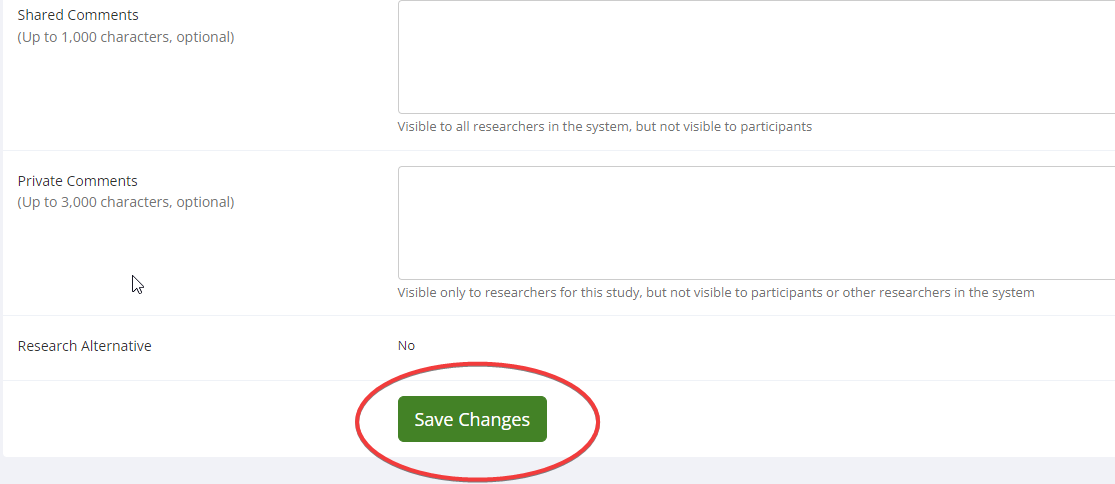
Save Changes