https://run.pavlovia.org/mgreen/coin?participant=${e://Field/id}5 From consent to task for pavlovia etc
Note
The purpose of this section is to show how to create the links to the task, assuming that we approach the task from the Qualtrics debrief.
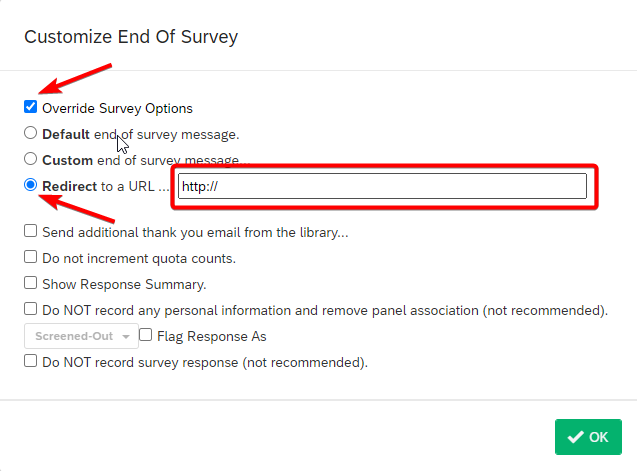
Recall from Chapter 4 that it is possible to customise the ‘end of survey’ element in the branch that is conditional on the consent question being answered I consent, begin the study. One possible customisation is to ‘Redirect to a URL’ that you specify: Figure 5.1
Typical websites used to present experiments in pscyhology include pavlovia.org, gorilla.sc, testable.org:
Important
Show how to go from recruitment site, consent form, to gorilla and testable not just psychopy
let’s use pavlovia.org as an example.
The URL that should go in the ‘Redirect to a URL’ field is made by combining:
- the run URL for the pavlovia project;
- a question mark ? to denote that what follows is a `query string’
- some code to pass on the id:
participant=${e://Field/id}
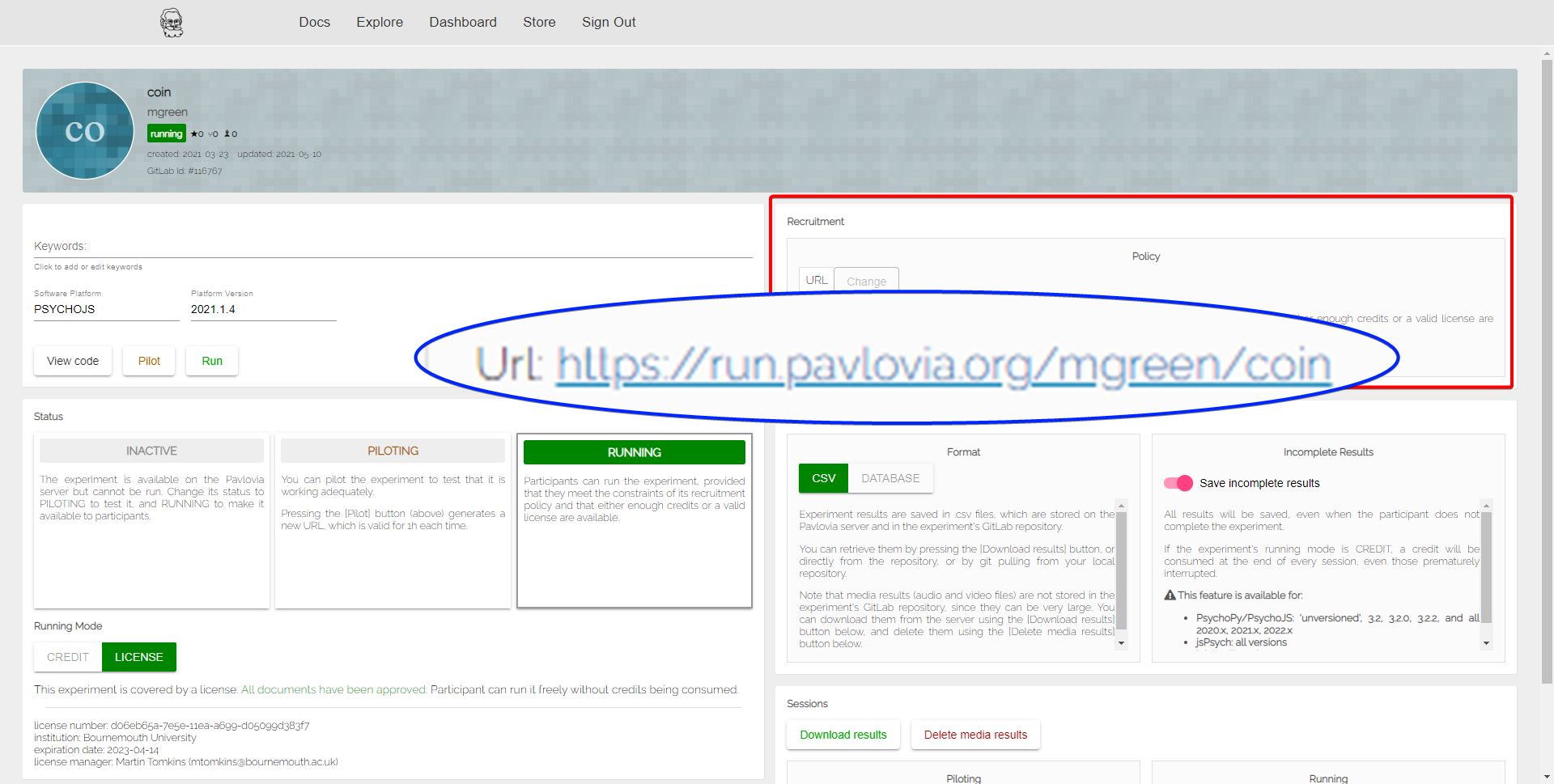
Run URL from `Recruitment’ panel of pavlovia homepageTo illustrate, I’ll use a pavlovia project called coin. The URL for a pavlovia project’s homepage is https://pavlovia.org/ followed by the name of the user and a slash, followed by the name of the project, so in this case it’s https://pavlovia.org/mgreen/coin. When you visit the project’s homepage, there is a panel called Recruitment in the upper right that lists a Url, and it is this that we use as the run URL. It is formed from the project homepage’s address by changing pavlovia to run.pavlovia, so the run URL for this project is https://run.pavlovia.org/mgreen/coin, as in Figure 5.2. We add to that the question mark to denote that what follows is a query string, and the code to pass on the id: participant=${e://Field/id} – leaving us with the following to put into the ‘Redirect to a URL’ field of the customised ‘end of survey’ that runs when participants agree to give informed consent in the Qualtrics consent form:
Tip
It’s possible to use query strings to pass on more information to the task in the URL. For example, let’s say that you have a between-subjects factor with 2 levels, A, and B. Across the whole experiment, you want equal numbers of people to participant in condition A and condition B. You have a field “condition” in your PsychoPy experiment that, if it is set to “random”, will assign your participant to a random group each time the experiment runs. If it is set to “A”, each participant will be assigned to A, and likewise for B. To implement random assignment to condition, you could use a query string to pass “random” in as the value for “condition”. If you already have one query string being used, which we do, to pass in “id”, then we use ampersand – “&” to pass in additional query strings, instead of re-using question mark – “?”. Adding the variable for condition would mean adding &condition=random to your ‘Redirect to a URL’ so it would change from:
https://run.pavlovia.org/mgreen/coin?participant=${e://Field/id}to
https://run.pavlovia.org/mgreen/coin?participant=${e://Field/id}&condition=randomLet’s say that after running 90 people out of the 100 you can afford, you can see that assigning people at random had by chance resulted in 40 people in A and 50 people in B. You want to run all the remaining ten people in A to even up the balance. Since editing an experiment that is under way is risky - you might break other things trying to fix this problem - and since you had the foresight to set up the experiment with a field for condition, you can now just edit the link to change &condition=random to &condition=A, and know that all remaining 10 people will be run in condition A, and you’ll end up with a balanced data-set.