1 Set up Qualtrics consent to handle id
Note
The purpose of this section is to show how to use Qualtrics to receive an id from a recruiting site like SONA or Prolific; or how to use Qualtrics to generate an id if you’re not using a recruitment site like SONA or Prolific.
If you are paying people with course credit then you can take advantage of the fact that SONA can generate an ID that is tied to the student’s SONA account; pass it on to the next website; and ultimately receive that ID and award credit.
If you are paying people with money then you can take advantage of the fact that Prolific can do the same thing for non-students: generate an ID linked to their participant account, and receive the ID after the task is completed.
If you are using social media to recruit volunteers then you can take advantage of the fact that Qualtrics can generate and receive an ID. In this case you need two Qualtrics surveys: a starting survey to generate an ID and send it on; and a completion survey to receive the ID when the experiment is finished. If you have a system where social media volunteers are entered into a prize draw then you could use the completion survey to collect an email address so that you can contact the winner.
Setting up Qualtrics to handle ID
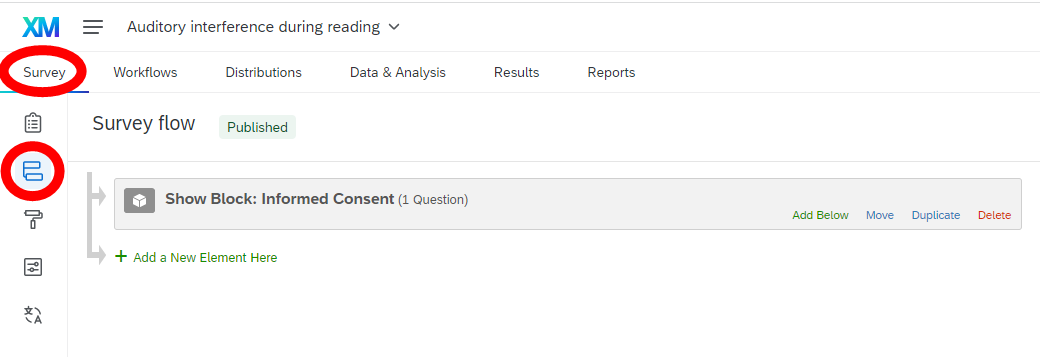
Clicking Survey -> Survey Flow (Figure 1.1) shows the various Blocks in the Qualtrics survey. In this example, we are using Qualtrics for informed consent only, and we only have one Block because of that, but if you are using Qualtrics to collect responses to a survey or questionnaire then you will have more Blocks – the same course of action applies in each of those cases.
idFirst add a new element 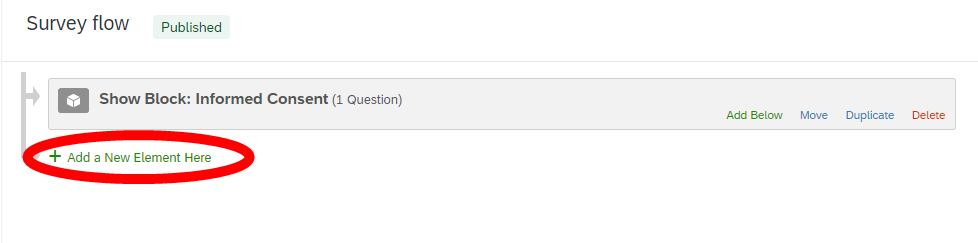
Choose “Embedded data” 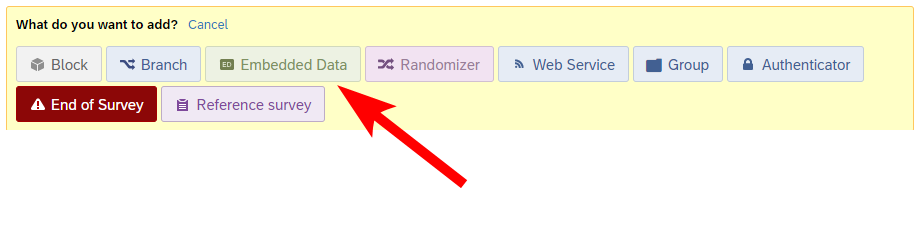
Replace the text “Create New Field or Choose From Dropdown…” with “id” 

Warning
In set embedded data is it ‘value will be set from panel or URL’ or ‘Set a value now’ if you want to generate a random number?
Move the block to the top so it occupies first position in the sequence of Blocks: click the ‘Move’ button and drag the Block 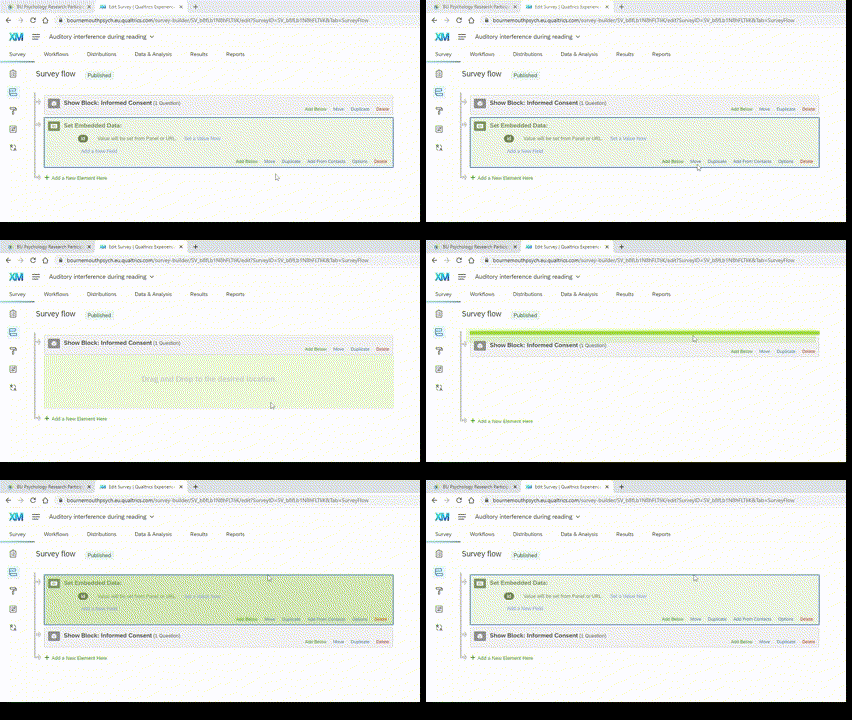
If you are compensating with course credit or money then you are set up up to receive an ID. Later we see how to pass ID from SONA or from Prolific.
SONA uses %SURVEY_CODE% to refer to the participant. Qualtrics expects id. So the link that we’ll see how to make will use ?id=%SURVEY_CODE%.
Prolific uses PROLIFIC_ID to refer to the participant. Qualteics expects id. So the link that we’ll make will use ?id=PROLIFIC_ID
If you are using social media then you need to set it up to generate an ID.
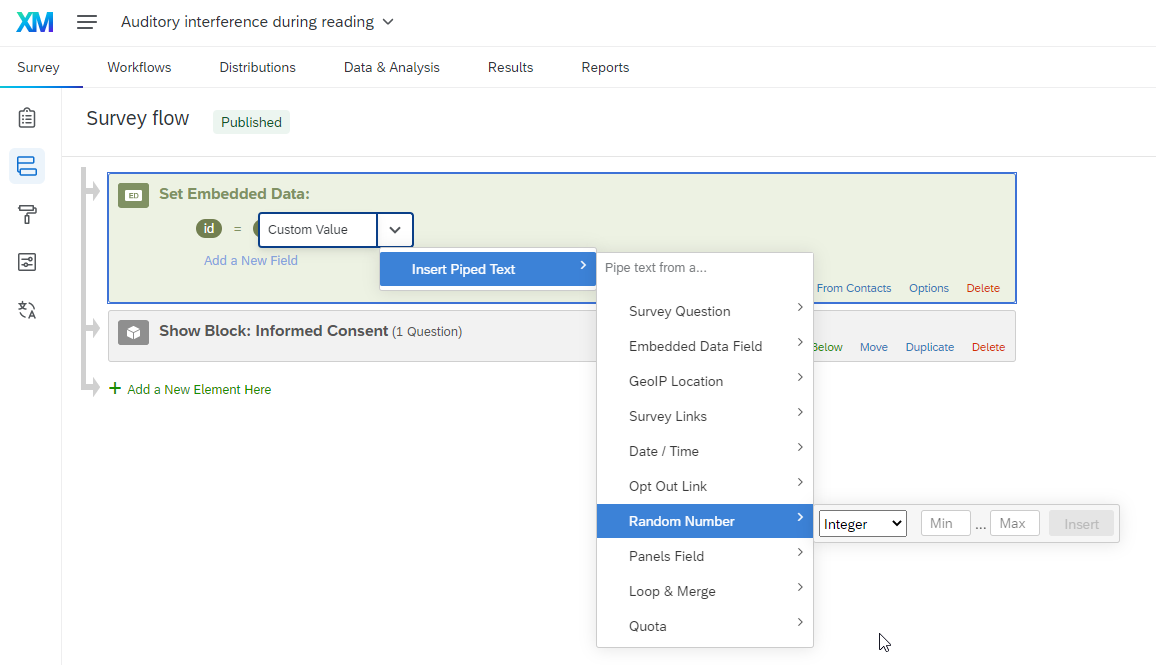
For the next steps refer to Figure 1.2.
For id = choose Custom Value. From the dropdown choose Insert piped text. From the dropdown choose Random Number. From the options choose Integer. You then need to choose values for Min and Max. I suggest that you use a 6 digit number here to distinguish numbers that you generate from the 5-digit numbers that SONA uses, so Min should be 100000 and Max should be 999999